If you’ve ever finished a workday with aching lower back pain that seems to creep up unnoticed until it’s impossible to ignore, your workspace is likely the culprit. Millions of office workers suffer daily from preventable ergonomics lower back pain caused by chairs that flatten their spine’s natural curve, desks that force unnatural reaching, and monitors positioned at angles that trigger a domino effect of postural strain. The uncomfortable truth is that sitting for eight hours in a poorly configured workspace isn’t just uncomfortable—it’s actively damaging your spine through microtrauma that accumulates into chronic pain. This guide reveals exactly how to transform your desk setup from a pain generator into a spine-protecting system with specific, actionable adjustments you can implement today.
Why Your Chair Flattens Your Spine While You Work
Your lumbar spine needs proper support to maintain its natural curve during sitting, yet most standard office chairs actively work against this essential alignment. When your chair lacks adequate lumbar support, your pelvis rotates backward, eliminating the healthy inward curve of your lower back and placing excessive pressure on the front portions of your intervertebral discs. This seemingly minor postural shift creates a chain reaction: hip flexors tighten from constant shortening, gluteal muscles weaken from disuse, and your spine loses its shock-absorbing capability—all while you remain completely unaware until pain becomes unavoidable.
How to Adjust Your Chair Height for Optimal Spinal Alignment
Raise or lower your chair until your feet rest completely flat on the floor with your knees bent at 90 degrees. Your thighs should be parallel to the ground—if your feet dangle, you’re forcing your lower back muscles into constant compensation mode. When your chair is too low, your hips drop below knee level, creating a posterior pelvic tilt that flattens your lumbar curve and crushes your discs. For proper alignment:
- Position your seat height so your elbows rest naturally at 90 degrees when typing
- Use a footrest if your feet don’t reach the floor comfortably
- Ensure your chair allows full contact between your lower back and the lumbar support
Seat Depth Mistakes That Cause Hidden Back Strain
Most people unknowingly sit on chairs with improper seat depth, forcing them to choose between knee comfort and proper back support. Your seat should allow 2-4 inches of space between the back of your knees and the front edge—any less restricts blood flow to your legs, while any more means you’ll slide forward and lose contact with the lumbar support. When you can’t sit fully back in your chair, your spine collapses into the “C-shaped” slouch that experts identify as the primary cause of work-related lower back pain.
Fix Your Desk Height to Stop Lower Back Compression
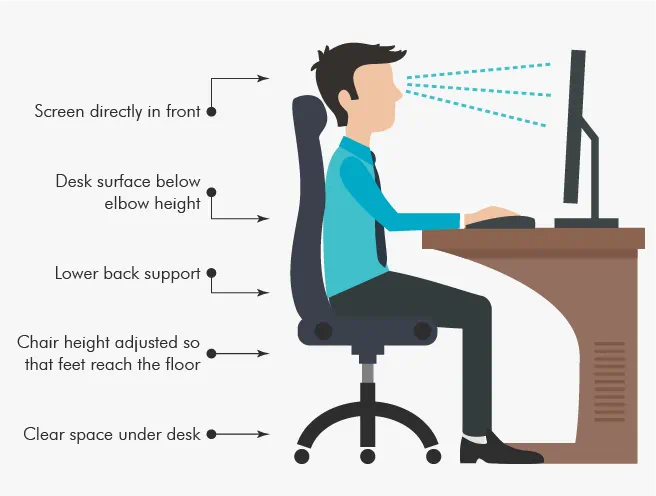
Your desk height directly determines whether your spine maintains its natural curves or gets forced into damaging positions throughout the workday. When your desk sits too high, you elevate your shoulders to reach your keyboard, creating tension that travels down your spine to your lower back. When it’s too low, you hunch forward at the hips, flattening your lumbar curve and placing sustained pressure on your intervertebral discs. The solution? Adjust your desk height until your elbows rest comfortably at 90 degrees with your forearms parallel to the ground—this simple alignment prevents the forward lean that compresses your lower spine.
Organize Your Workspace to Eliminate Pain-Inducing Reaching
Cluttered desks force you into constant reaching, twisting, and leaning that strain your lower back muscles over time. Keep frequently used items within a “comfort zone” that extends no more than 15-18 inches from your body—anything beyond this distance requires torso rotation or forward bending that stresses your lumbar spine. Place your keyboard, mouse, phone, and notepad directly in front of you without requiring shoulder elevation or hip twisting. This simple reorganization prevents the cumulative micro-movements that lead to chronic lower back pain.
Position Your Monitor to Prevent Spinal Domino Effect

Your monitor placement affects your lower back more than you realize because improper positioning triggers a chain reaction of compensatory postures. When your screen sits too low, you naturally bend your neck forward, which forces your entire spine—including your lower back—into misalignment to maintain balance. The weight of your head increases from 10-12 pounds in neutral position to over 40 pounds when significantly forward, causing your pelvis to shift and your lumbar curve to exaggerate in compensation.
How to Set Up Multiple Monitors Without Back Strain
If you use dual monitors, position your primary screen directly in front of you with the secondary screen turned inward at a 30-degree angle. The top of your main monitor should align with your eyebrow level when you’re sitting upright—this allows a comfortable 10-20 degree downward gaze without neck flexion. Never place secondary screens more than 60 degrees from center, as this forces constant twisting that creates asymmetric loading on your lumbar spine. Use monitor arms to achieve proper height and angle without straining.
Keyboard and Mouse Setup That Protects Your Lower Back

Your input devices directly influence lower back health through their effect on overall posture and muscle engagement. When your keyboard sits too far forward, you must lean from your hips to reach it, flattening your lumbar curve and engaging hip flexors in shortened positions that create tightness referring pain to your lower back. The ideal position keeps your keyboard and mouse at the same height, close enough that your elbows stay at 90 degrees without shoulder elevation.
Why Wrist Position Matters for Lower Back Health
Bent wrists during typing create tension that travels up your arms and affects your entire spinal alignment. When your wrists flex upward or downward, your forearm muscles work harder, causing you to shift weight unevenly in your chair and adopt asymmetric postures that strain your lower back. Maintain a straight, neutral wrist position by:
- Using a keyboard tray that positions the keyboard 1-2 inches below elbow height
- Keeping your mouse close to your body at the same height as your keyboard
- Considering an ergonomic split keyboard if you type extensively
How to Sit Properly Without Constant Posture Reminders
True ergonomic seating isn’t about rigidly maintaining one “perfect” position—it’s about creating a dynamic sitting environment that supports natural movement. Your chair should allow micro-movements while maintaining contact with your lumbar support. Start by sitting all the way back in your chair with your lower back against the lumbar support, then adjust the tilt tension so you can recline slightly (100-110 degrees) without losing lower back contact. This slight recline reduces disc pressure by up to 30% compared to upright sitting while keeping your spine properly aligned.
Break the Slouching Cycle with Active Sitting
Most people don’t realize they’re slouching until pain sets in, but you can train your body to maintain better posture through active sitting techniques. Set a timer to check your posture every 30 minutes using this quick self-assessment:
- Are your ears aligned over your shoulders?
- Is your lower back in contact with the lumbar support?
- Are your feet flat on the floor with knees at 90 degrees?
- Are your shoulders relaxed, not hunched toward your ears?
Each time you catch yourself slouching, gently reset your position by pressing your lower back into the chair’s support. Over time, this builds muscle memory that makes proper posture automatic.
Movement Breaks That Actually Prevent Lower Back Pain
Your spine’s intervertebral discs rely on movement to receive nutrients—they literally starve during prolonged sitting. Taking strategic movement breaks every 30-60 minutes isn’t just helpful; it’s essential for disc health. Stand up and perform these three quick movements that specifically counteract sitting-related lower back strain:
- Standing lumbar extensions: Place hands on lower back, gently arch backward 5-10 times
- Hip flexor stretch: Step one foot forward into lunge position, push hips forward
- Walking break: Take a 2-3 minute walk to restore circulation to spinal tissues
Set phone reminders to ensure you actually take these breaks—most people skip them when absorbed in work. These micro-breaks reduce disc pressure by 50% compared to continuous sitting, dramatically lowering your risk of developing chronic lower back pain.
Essential Stretches for Desk Workers with Back Pain
Incorporate these targeted stretches into your workday to counteract the specific muscle imbalances caused by sitting:
- Cat-cow stretch: On hands and knees, alternate between arching and rounding your back to mobilize stiff spinal segments
- Child’s pose: Sit back on heels with arms extended forward to gently elongate compressed lumbar discs
- Glute bridge: Lie on back with knees bent, lift hips to activate weak glutes that support your lower back
Perform these stretches for 30-60 seconds each whenever you feel stiffness developing. Consistent daily stretching prevents the muscle tightness that contributes significantly to ergonomics lower back pain.
Build a Complete Ergonomic System That Works
Preventing lower back pain requires more than isolated adjustments—it demands a complete ergonomic ecosystem where all components work together. Start with your chair as the foundation, then adjust desk height to match your seated position, position your monitor at proper eye level, and place input devices within your comfort zone. The magic happens when all elements align to support your spine’s natural curves without requiring constant muscular effort to maintain position.
When to Invest in Professional Ergonomic Assessment
If you’ve implemented basic ergonomic adjustments but still experience lower back pain, consider a professional ergonomic assessment. Certified ergonomists use specialized tools to measure your exact body dimensions and work patterns, identifying subtle misalignments that contribute to pain. Many employers cover these assessments through workplace wellness programs—this investment often prevents costly medical treatments down the road.
Long-Term Strategies for Pain-Free Desk Work
Protecting your back requires ongoing attention as your body and work demands change. Schedule quarterly ergonomic check-ups where you reassess your chair settings, monitor height, and movement habits. Strengthen your core muscles with daily planks and bird-dog exercises to build internal support for your spine. Most importantly, view ergonomic optimization as a continuous process rather than a one-time fix—your spine will thank you for decades of pain-free productivity. Remember, the cost of proper ergonomics pales in comparison to the physical and financial toll of chronic lower back pain. Start with one change today, then build your complete pain-prevention system one adjustment at a time.