You’ve probably experienced that nagging neck pain, wrist discomfort, or lower back ache after spending too long at your desk. If you’re like most professionals today, you’re sitting at your workstation for eight or more hours daily—but it doesn’t have to mean chronic pain. Creating an ergonomic workstation isn’t just about buying expensive gear; it’s about strategically arranging what you have to support your body’s natural alignment. When properly configured, your workspace should work for you, not against you, reducing muscle strain while actually improving your productivity. This guide shows you exactly how to make an ergonomic workstation that prevents discomfort, supports proper posture, and keeps you feeling energized throughout your workday. No guesswork required—just actionable steps you can implement immediately.
Adjust Your Chair Height for Optimal Spinal Support
Your chair is the foundation of your entire ergonomic workstation, and getting this right transforms everything else. Start by adjusting your chair so your knees form a near 90-degree angle with your feet flat on the floor—this creates a horizontal thigh position that properly distributes your weight. When your thighs are level, you reduce pressure on your spine and joints that causes the lower back pain plaguing desk workers everywhere. Your feet must rest fully on the ground to promote healthy circulation and provide stable support during extended sitting.
After finding the right height, check your posture: you should feel balanced without thigh pressure or lower back strain. If your feet dangle or knees sit above hip level, lower your chair. If your knees point upward significantly, raise it until your thighs are parallel to the floor. This simple adjustment prevents the “slouch-and-reach” posture that leads to chronic discomfort. For chairs with lumbar support, position it to gently fill the natural curve of your lower back—this maintains spinal alignment and prevents the hunching that develops when support is missing. Remember, your chair isn’t just a seat; it’s active support that should keep your spine in its natural S-curve throughout the workday.
Position Your Desk to Eliminate Shoulder Tension
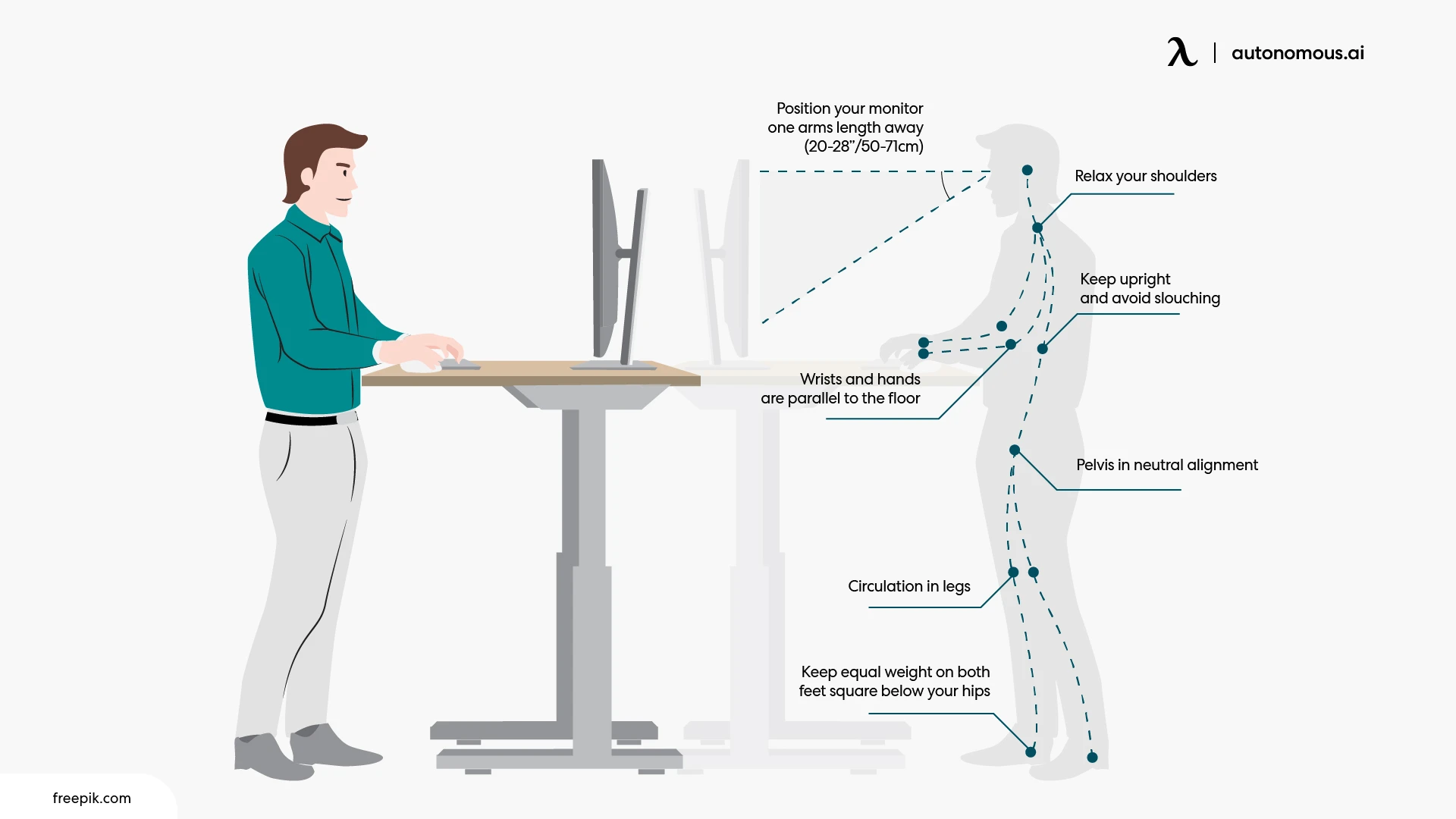
Once your chair is set, focus on desk height—this directly impacts shoulder comfort and upper body strain. Your desk should be positioned so your elbows rest flush with the tabletop, creating a straight line from shoulders through elbows to wrists. This alignment prevents the shoulder tension that builds when your desk is too high (forcing you to raise your arms) or too low (making you hunch forward).
Adjust your desk height until your arms rest naturally at your sides without hunching or reaching. Armrests should support your elbows without lifting your shoulders toward your ears—your shoulders must stay relaxed throughout the day. If your desk is fixed height, adjust your chair height instead, but ensure your feet remain flat on the floor (use a footrest if needed). The sweet spot is when your keyboard and mouse sit at the same height as your elbows, allowing your forearms to rest parallel to the floor. This position dramatically reduces strain on your trapezius muscles—the ones that typically knot up from improper desk height. For standing desks, alternate between sitting and standing every 30-60 minutes, adjusting height each time to maintain proper elbow alignment in both positions.
Position Your Monitor to Prevent Neck Strain
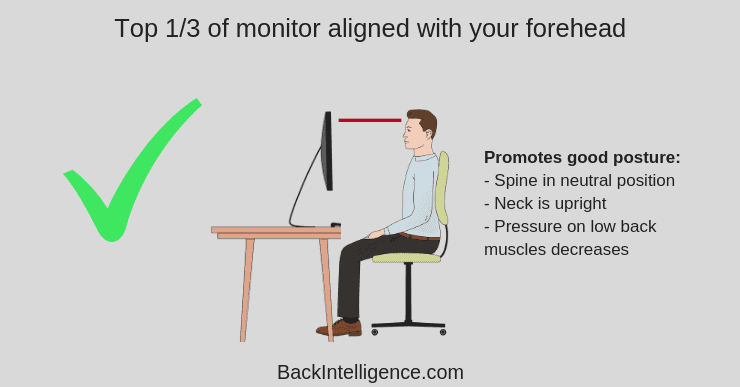
Your monitor placement is crucial for preventing the “tech neck” that causes chronic pain for so many desk workers. Position your screen at arm’s length distance—make a fist and hold it out; that’s your ideal screen distance. This reduces eye strain while keeping content within your natural field of vision. The top of your screen should align with your eye level so you view it with a slight downward gaze (about 15-20 degrees), not by tilting your head up or down.
For laptop users, this is non-negotiable: elevate your screen using a stand or stack of books so the top aligns with eye level. Never work with a laptop at desk height—that downward gaze creates tremendous neck strain over time. If you use dual monitors, position your primary screen directly in front of you and the secondary screen immediately adjacent (not behind or too far to the side), minimizing excessive neck rotation. For curved monitors, ensure the center aligns with your face so you don’t twist your neck to view content. Proper monitor positioning prevents the forward head posture that adds 10+ pounds of extra strain on your neck muscles for every inch your head moves forward.
Arrange Your Keyboard and Mouse to Protect Your Wrists

Your input devices significantly impact wrist health and shoulder comfort throughout the workday. Bring your keyboard and mouse close to your body so you don’t have to reach forward—this simple adjustment prevents shoulder fatigue that builds during extended sessions. Position your keyboard so the “H” key aligns with your body’s center if you type primarily on letter keys, centering your typing zone directly in front of your torso.
Your wrists should remain straight and aligned with your forearms during all typing and mousing activities—no bending upward, downward, or sideways. Bent wrist positions compress nerves and restrict blood flow, eventually causing discomfort and potential repetitive stress injuries. Keep your mouse close to your keyboard at the same height, positioned so your entire arm—not just your wrist—controls mouse movements. For split keyboards, align the split with your body’s center and the screen’s midpoint, allowing hands to rest in a natural, relaxed position. If your keyboard has a number pad you rarely use, move it to the side and position your mouse there instead—this reduces shoulder extension and keeps your working area more compact.
Choose Ergonomic Input Devices That Fit Your Physiology
Generic keyboards and mice force your body to adapt to poor design—ergonomic options let your body work naturally. Vertical mice position your hand in a handshake position that reduces forearm rotation and wrist deviation, significantly decreasing strain on tendons and nerves. Split keyboards separate the key sections to match your natural shoulder width, keeping wrists straight and shoulders relaxed rather than hunched forward.
When selecting devices, consider your specific hand size and shape—hands come in all dimensions, and a mouse too large or small creates strain over time. Test different grip styles: palm grip, claw grip, or fingertip grip to find what feels most natural for extended use. For keyboard height, consider a negative tilt (front higher than back) which keeps wrists straighter than the traditional positive tilt. Research shows ergonomic input devices reduce muscle activity during computer use by up to 20%, meaning you work just as productively while putting less stress on your body. Start with one ergonomic device (usually a mouse), then add others as needed—your body will tell you what makes the biggest difference.
Enhance Your Workstation with Smart Customizations
Beyond the basics, subtle customizations significantly boost your ergonomic workstation effectiveness. For smaller-statured users or those who rarely use the number pad, a compact or minimalist keyboard reduces shoulder extension by bringing keys closer to your body’s center. This keeps shoulders in a more relaxed, retracted position rather than reaching outward for distant keys.
Take advantage of software customization to reduce physical strain—applications like Logi Options+ let you program keys or mouse buttons for frequent tasks, minimizing repetitive movements. Create shortcuts for common functions to avoid complex key combinations that strain fingers. For dual monitor users, configure your displays so the primary screen aligns with your dominant eye and secondary screen sits at a slight inward angle, reducing neck rotation. If you frequently reference printed materials, use a document holder positioned at the same height and distance as your monitor to prevent constant head turning. These customizations transform your ergonomic workstation from merely “correct” to truly optimized for your specific workflow.
Maintain Ergonomic Wellness with Daily Habits
Even the best ergonomic workstation fails without movement—your body isn’t designed for static positions. Every 30-60 minutes, take a 1-2 minute break to stand, stretch, and reset your posture. Perform simple neck stretches (gently tilting head side-to-side), shoulder rolls, and wrist extensions to counteract accumulated tension. Set phone reminders or use apps like Stretchly to prompt regular movement breaks—these brief interruptions prevent the muscle fatigue that leads to chronic issues.
Building lasting ergonomic habits requires more than equipment—it needs behavioral strategies. Start with posture awareness: set hourly reminders to check “feet flat, back supported, shoulders relaxed, wrists straight.” Place visual cues like sticky notes on your monitor reminding you to “breathe and relax shoulders.” Track your progress for two weeks—note when pain occurs and what you were doing. Most importantly, listen to your body’s signals; discomfort is your body’s warning system. An ergonomic workstation works best when combined with movement and mindfulness—treat your physical wellness as seriously as your work output, because without it, your productivity inevitably suffers.
Creating an ergonomic workstation isn’t a one-time project but an ongoing practice of refinement and adjustment. By methodically addressing chair height, desk positioning, monitor placement, input device arrangement, and smart customizations, you build a workspace that actively supports your body rather than fighting against it. Remember that the most expensive equipment won’t help if positioned incorrectly, while thoughtful adjustments to basic gear can transform your comfort and health. Start with one change today—adjust your chair height or reposition your monitor—and build from there. Your body will thank you with reduced pain, improved focus, and greater energy throughout your workday. How to make an ergonomic workstation successfully comes down to consistent attention to these details, turning proper setup into a sustainable habit that protects your physical wellbeing for years to come.