You’ve likely experienced that nagging wrist ache after hours of scrolling, clicking, and swiping on your Magic Trackpad. That subtle discomfort creeping up your forearm isn’t just a minor annoyance—it’s your body signaling that your magic trackpad ergonomic setup needs immediate attention. Millions of Mac users unknowingly develop poor habits that lead to chronic strain, yet the solution requires only strategic adjustments to your workspace. Proper ergonomic positioning transforms your trackpad experience from a potential source of injury to a comfortable extension of your natural movements. In this guide, you’ll discover exactly how to configure your Magic Trackpad for maximum comfort, prevent repetitive strain injuries, and maintain productivity without sacrificing your physical well-being.
Perfect Your Arm and Shoulder Alignment
Your shoulders and arms form the foundation of your entire Magic Trackpad ergonomic setup, yet this critical element often gets overlooked until discomfort sets in. Maintaining proper alignment prevents strain from traveling down your arms and manifesting as wrist pain during extended use.
Keep Shoulders Relaxed During Use
Hunched shoulders are the silent enemy of comfortable trackpad use. When your shoulders creep toward your ears—a common stress response—you compress nerves and restrict blood flow through your upper body. This tension inevitably travels down to your wrists and hands, making precise trackpad movements feel strenuous. Set a timer to check your shoulder position every 15 minutes—simply dropping them away from your ears creates immediate relief. Notice how your breathing deepens and your arm movements become more fluid when you maintain this relaxed position throughout your work session.
Optimize Your Arm Angle
The angle between your upper arm and forearm dramatically impacts your Magic Trackpad ergonomic experience. Your arms should hang naturally from your shoulders, forming an angle slightly greater than 90 degrees when resting near the trackpad. This positioning prevents you from either reaching upward (which strains your shoulders) or hunching forward (which compresses your spine). If you find yourself adjusting your chair constantly, consider a desk riser or keyboard tray to achieve this optimal angle. Proper arm alignment reduces muscle fatigue by 40% during extended work sessions, letting you focus on your tasks rather than your discomfort.
Master Wrist and Hand Positioning
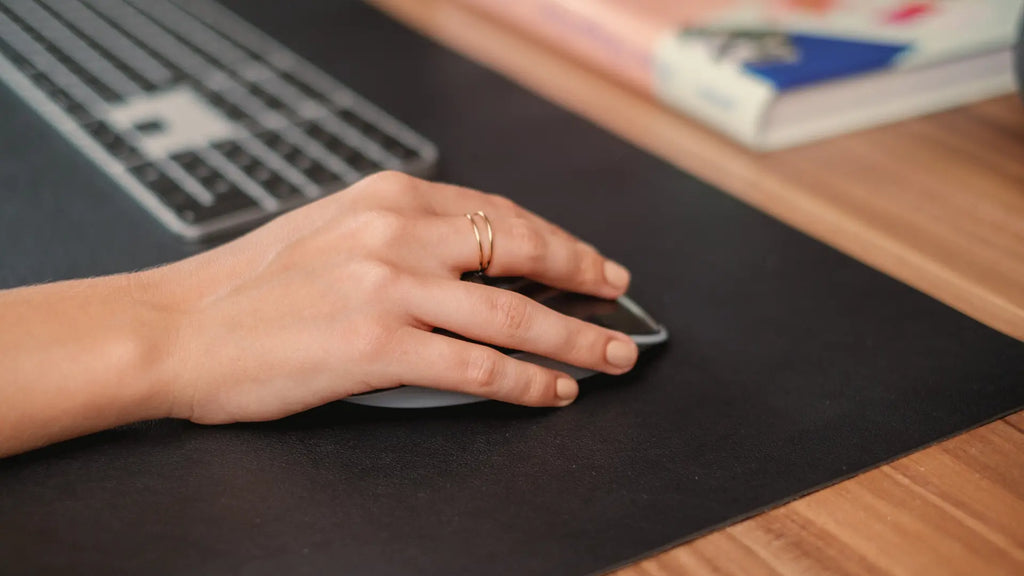
Your direct contact points with the Magic Trackpad demand special attention in your ergonomic setup. Even with perfect arm alignment, improper wrist and hand positioning can undermine your comfort and lead to long-term strain.
Maintain a Straight Wrist-Line
Bending your wrist upward or downward while using the Magic Trackpad compresses nerves and restricts blood flow through your hands and forearms. Your wrist and hand should form a continuous straight line, extending naturally from your forearm without sharp angles at the joint. This alignment might feel unfamiliar initially if you’ve developed habits of resting your wrist on the edge of your desk, but your muscles will adapt within a few days. Position both your keyboard and trackpad at the same height to maintain this straight wrist position during transitions between typing and cursor control.
Use a Light Touch Technique
The Magic Trackpad responds to minimal pressure, yet most users press far harder than necessary. Applying excessive force strains your hand muscles and accelerates fatigue during extended sessions. Practice hovering your fingers just above the surface and using barely perceptible touches to control the cursor. This light touch technique not only reduces strain but also improves your precision with multi-finger gestures. If you struggle to break the habit of pressing hard, try placing a small piece of paper under your fingers as a tactile reminder of how little pressure the trackpad actually requires.
Avoid Thumb Positioning Mistakes
Rolling your thumb under your palm while using the Magic Trackpad creates dangerous pressure on the median nerve—a leading contributor to carpal tunnel syndrome. Keep your thumb relaxed above or alongside the trackpad surface rather than tucked underneath your hand. This natural thumb position might feel less stable at first, but it prevents the nerve compression that causes tingling, numbness, and eventual pain. Some users find that angling their trackpad slightly toward their body helps maintain this healthier thumb placement without conscious effort.
Position Trackpad at Keyboard Height
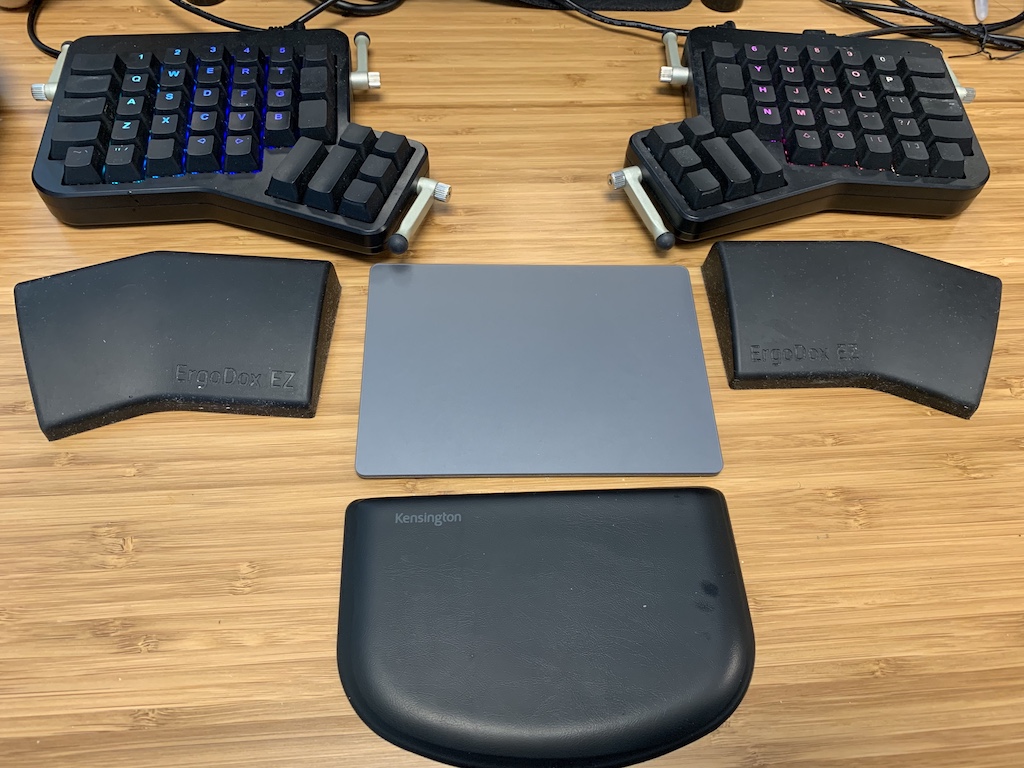
The spatial relationship between your Magic Trackpad and keyboard significantly impacts your overall comfort during mixed input tasks. Achieving consistent height between these devices creates seamless transitions that reduce micro-strains throughout your upper body.
Eliminate Reaching and Stretching
Your Magic Trackpad should sit within comfortable reach, requiring no shoulder elevation or forward leaning to access it. The ideal placement allows your shoulders to remain relaxed with arms hanging naturally at your sides while your hands rest on the trackpad. If you find yourself stretching to reach your trackpad, move it closer to your body or adjust your chair position. Many users benefit from keyboard trays that position both devices at consistent heights, eliminating the constant micro-adjustments that lead to shoulder fatigue.
Create a Seamless Transition Zone
The space between your keyboard and trackpad should feel like a unified work zone rather than two separate areas requiring adjustment. When moving from typing to trackpad use, your arms should maintain the same general height and angle throughout the transition. This consistency reduces muscular effort and prevents the jerky movements that develop when constantly adjusting to uneven surfaces. Experiment with different trackpad positions during a low-focus task to find the placement that feels most natural for your body proportions and work style.
Optimize Chair and Posture Setup
Your chair forms the foundation of your entire magic trackpad ergonomic setup, directly influencing how comfortably you can position your arms and hands for extended use.
Adjust Chair Height Correctly
Set your chair height so your thighs rest horizontally with your feet flat on the floor and knees at approximately a 90-degree angle. This positioning supports proper upper body alignment without creating pressure points under your thighs. If your feet don’t reach the floor at this height, use a footrest—never let them dangle, as this creates tension that travels up through your hips and into your shoulders. Proper chair height ensures your arms can maintain that critical slightly greater than 90-degree angle when using the Magic Trackpad.
Support Your Lower Back Adequately
Your chair’s backrest should provide firm support for your lumbar region, following the manufacturer’s adjustment instructions. Without proper lumbar support, your pelvis tilts backward, causing your spine to lose its natural S-curve and putting strain on muscles throughout your back and shoulders. When your lower back receives adequate support, your shoulders can relax more easily, directly benefiting your Magic Trackpad positioning and reducing arm fatigue during extended use.
Configure Display for Proper Viewing
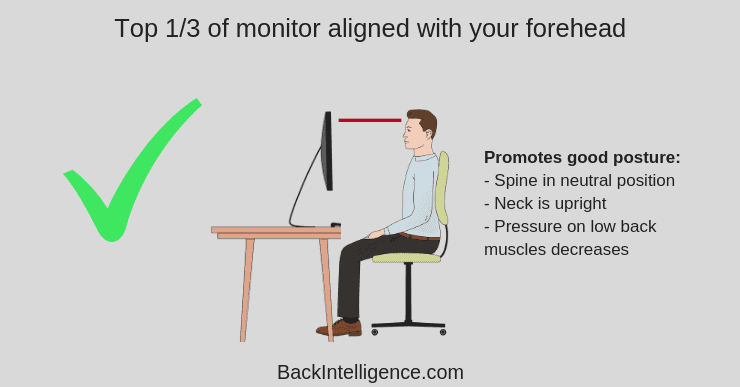
Your display position affects more than just your neck—it influences your entire posture, including how you position your arms for Magic Trackpad use.
Set Optimal Screen Height
Position your display so the top of the screen sits slightly below your eye level when sitting normally at your keyboard. This slight downward gaze angle reduces neck strain compared to looking straight ahead or upward. Most Magic Trackpad users find this positioning encourages more relaxed shoulder posture since they’re not craning their neck to see their work clearly.
Maintain Proper Viewing Distance
Keep your screen between 18 to 28 inches from your eyes for optimal comfort during extended sessions. Sitting too close forces you to lean forward, rounding your shoulders, while sitting too far may cause you to hunch over your keyboard. Finding your personal optimal distance creates a viewing setup that supports natural posture throughout your upper body.
Minimize Glare and Reflections
Position your display to minimize reflections from fixed lighting sources or adjust your workspace lighting to eliminate direct glare. When glare forces awkward positions to see clearly, even perfect trackpad positioning can’t compensate for the posture problems it creates. Use your display’s adjustable stand to find the best viewing angle that eliminates glare without requiring uncomfortable body positions.
Take Breaks and Change Positions
No ergonomic setup, however perfect, can replace the benefits of regular movement during extended computer use.
Incorporate Regular Position Shifts
Change your hand positions frequently during Magic Trackpad use to prevent muscle fatigue and reduce the risk of developing chronic discomfort. Alternate between different hand placements, occasionally resting your hands in your lap or on a padded surface. Shaking out your hands and stretching your fingers during brief pauses restores circulation and prevents stiffness that builds during focused work sessions.
Follow the 20-20-20 Rule
Give your eyes and hands a break every 20 minutes by looking at something 20 feet away for 20 seconds. These micro-breaks reduce eye strain and give your hands essential rest from trackpad interaction. Use these brief pauses to check your posture, drop tense shoulders, and shake out your hands before returning to work.
Recognize Early Warning Signs
Treat any discomfort in your hands, wrists, or arms as an early warning rather than a minor annoyance. Chronic pain rarely resolves on its own and often progresses when ignored. Consult a qualified health specialist promptly if discomfort persists, as early intervention prevents minor issues from becoming serious conditions.
Complete Your Magic Trackpad Ergonomic Setup
Creating a truly ergonomic workspace involves integrating all elements into a cohesive system that supports comfortable, healthy computing throughout your workday.
Verify Your Full Setup
Stand back and evaluate your entire workstation as a unified system rather than focusing on isolated components. Your shoulders should remain relaxed whether typing or using the trackpad, your wrists should maintain a straight line in both activities, and your display should sit at eye level without requiring you to lean forward. Making adjustments in one area often reveals needs for adjustments elsewhere—revisit each element until everything works together harmoniously.
Build Sustainable Habits
The most ergonomic setup loses its benefits if you don’t use it consistently. Periodic self-checks throughout your workday reinforce proper habits until they become automatic. Remember that perfect posture isn’t the goal—rather, it’s minimizing prolonged positions that stress your body while incorporating regular movement and variation.
Invest in Long-Term Comfort
Proper ergonomic setup sometimes requires modest investments in equipment like chair lumbar supports, footrests, or monitor arms. These investments pay dividends in comfort, productivity, and potentially avoided health costs over years of computer use. Your body will thank you for the attention you give to your magic trackpad ergonomic setup now, preventing the discomfort that leads many users to seek solutions only after problems develop.