Your Microsoft ergonomic keyboard suddenly stops responding mid-project, and you’re left staring at a screen with an unresponsive input device. This frustrating scenario affects countless users who rely on these split-design keyboards for comfortable, productive typing sessions. Whether your keyboard is wired or wireless, experiencing connectivity problems, suffering from unresponsive keys, or exhibiting mysterious indicator light patterns, this comprehensive guide walks you through every viable solution. The majority of keyboard issues resolve without requiring professional repair or keyboard replacement—we’ll help you identify and fix the problem quickly.
Before diving into complex troubleshooting, understand that most Microsoft ergonomic keyboard failures stem from a handful of common causes: depleted batteries in wireless models, outdated drivers, Bluetooth pairing conflicts, or simple connectivity issues. By systematically working through the solutions outlined below, you can restore your keyboard’s functionality and return to comfortable, ergonomic typing within minutes.
Diagnose Power Problems First
Power-related issues represent the single most common cause of keyboard malfunctions, particularly for wireless Microsoft ergonomic keyboards. Before attempting any advanced troubleshooting, verify that your keyboard has adequate power and that the power system functions correctly.
Battery Installation and Replacement
For Microsoft ergonomic keyboards using disposable batteries, improper battery installation frequently causes complete device failure. Locate the battery compartment on the keyboard’s underside—most models feature a sliding cover that releases with gentle pressure. Open the compartment and examine the polarity indicators stamped inside. These markings show exactly how to orient your batteries, with plus (+) and minus (-) symbols indicating correct positioning. Even one battery installed incorrectly prevents the entire keyboard from functioning.
If you’ve confirmed correct battery orientation but the keyboard remains unresponsive, the batteries themselves may be depleted. Battery power depletes gradually, often without obvious warning signs until complete failure occurs. Replace both batteries with fresh alkaline batteries from a reputable manufacturer. Generic or expired batteries sometimes provide insufficient power for proper keyboard operation, so using quality batteries ensures consistent performance. For keyboards with rechargeable batteries, connect the included USB cable to your computer and allow a full charge cycle before attempting wireless operation. A completely depleted rechargeable battery may require several hours on the charger before the keyboard responds.
Pro Tip: When replacing batteries, wipe the battery contacts with a cotton swab slightly dampened with rubbing alcohol. Corroded or dirty contacts can prevent proper power transfer even with fresh batteries installed.
Power Cycle Your Keyboard
When your Microsoft ergonomic keyboard exhibits unusual behavior such as blinking indicator lights or intermittent unresponsiveness, a power cycle often resolves temporary system glitches. Locate the power switch on your keyboard—this button typically sits on the bottom surface or along the side edge depending on your specific model. Switch the keyboard completely off, then wait precisely ten seconds before turning it back on. This brief waiting period allows the keyboard’s internal systems to fully reset and clear any residual charge that might cause persistent errors.
After power cycling, observe the indicator lights. A steady blinking light typically indicates pairing mode is active, while no light suggests the keyboard isn’t receiving power. A continuous red blinking pattern after power cycling signals critically low battery levels that require immediate attention through replacement or recharging. If power cycling doesn’t restore functionality, proceed to connectivity troubleshooting while keeping battery health in mind as a potential underlying cause.
Fix Bluetooth Connectivity Issues

Bluetooth connectivity problems plague wireless Microsoft ergonomic keyboards, manifesting as input delays, intermittent unresponsiveness, or complete connection failure. Understanding how your keyboard establishes and maintains Bluetooth connections helps you diagnose and resolve these issues effectively.
Proper Bluetooth Pairing Procedure
Establishing a new Bluetooth connection between your Microsoft ergonomic keyboard and computer requires following a specific sequence. Begin by pressing and holding the pairing button on your keyboard for five to seven seconds before releasing it. This button usually resides on the keyboard’s bottom surface, though its exact location varies between models. When the keyboard enters pairing mode, an indicator light begins blinking rapidly, signaling that your keyboard is discoverable to nearby Bluetooth-enabled devices.
On your Windows computer, access the Bluetooth settings by navigating to Start, then Settings, then Devices. Ensure Bluetooth is activated by checking the toggle switch at the top of this panel. Select “Add Bluetooth or other device” followed by “Bluetooth” from the subsequent menu. Your Microsoft keyboard should appear in the list of available devices—its name typically includes “Microsoft Ergonomic Keyboard” or a similar designation. Click the keyboard name to initiate pairing, then follow any additional on-screen prompts. Select “Done” when Windows confirms successful pairing.
Expert Note: If your keyboard doesn’t appear in the device list, try moving closer to your computer. Bluetooth has a limited range (typically 30 feet), and physical obstructions can weaken the signal significantly.
Resolve Conflicting Pairing Connections
If your keyboard’s pairing indicator light flashes three times and then extinguishes entirely, your keyboard is already paired to a different computer within range. This situation commonly occurs when the keyboard was previously connected to another device and remains registered in that system’s Bluetooth configuration. Windows maintains persistent Bluetooth pairings even when devices move out of range, causing this three-flash pattern when attempting to pair with a new computer.
To resolve this conflict, you must disconnect the keyboard from its currently paired computer. Access that computer’s Bluetooth settings through Start, Settings, Devices, and locate your keyboard in the list of paired devices. Select the keyboard entry and choose “Remove device” to clear the pairing. Once removed, return to your intended computer and repeat the pairing procedure from the beginning. The keyboard should now appear available for pairing and connect without the three-flash interference pattern.
Update Keyboard Drivers and Software
Outdated system software and keyboard drivers frequently cause functionality problems with Microsoft ergonomic keyboards. Windows updates include critical patches that improve peripheral device compatibility, while keyboard-specific software provides advanced configuration options essential for full functionality.
Check and Install Windows Updates
Navigate to Start, Settings, Update & Security, then Windows Update to access your system’s update settings. Select “Check for updates” and allow Windows to scan for available patches. Install any pending updates, which may include important keyboard compatibility improvements that resolve unresponsiveness or special key malfunctions. After installation completes, Windows prompts you to restart your computer—save your work and restart promptly to ensure new drivers initialize properly.
Non-Windows computer users should visit their manufacturer’s support website to obtain the latest drivers and system utilities. Manufacturers regularly release updates that improve compatibility with Microsoft peripherals, and installing these updates often resolves keyboard issues that Windows updates alone cannot fix.
Install Microsoft Mouse and Keyboard Center
The Microsoft Mouse and Keyboard Center is a dedicated application that maximizes functionality of Microsoft input devices. This software enables key remapping, sensitivity adjustment, shortcut configuration, and access to ergonomic features unique to Microsoft keyboards. Perhaps most importantly, the application delivers firmware updates that resolve compatibility issues and improve device stability.
Download the Mouse and Keyboard Center directly from Microsoft’s official support website. Run the installation wizard and follow all prompts to complete setup. After installation, the application automatically detects your connected Microsoft ergonomic keyboard and presents an interface for customization and troubleshooting. Specialized keys like media controls, function keys, and custom programmable buttons often require this software to function correctly.
Troubleshoot Unresponsive Keyboard Scenarios
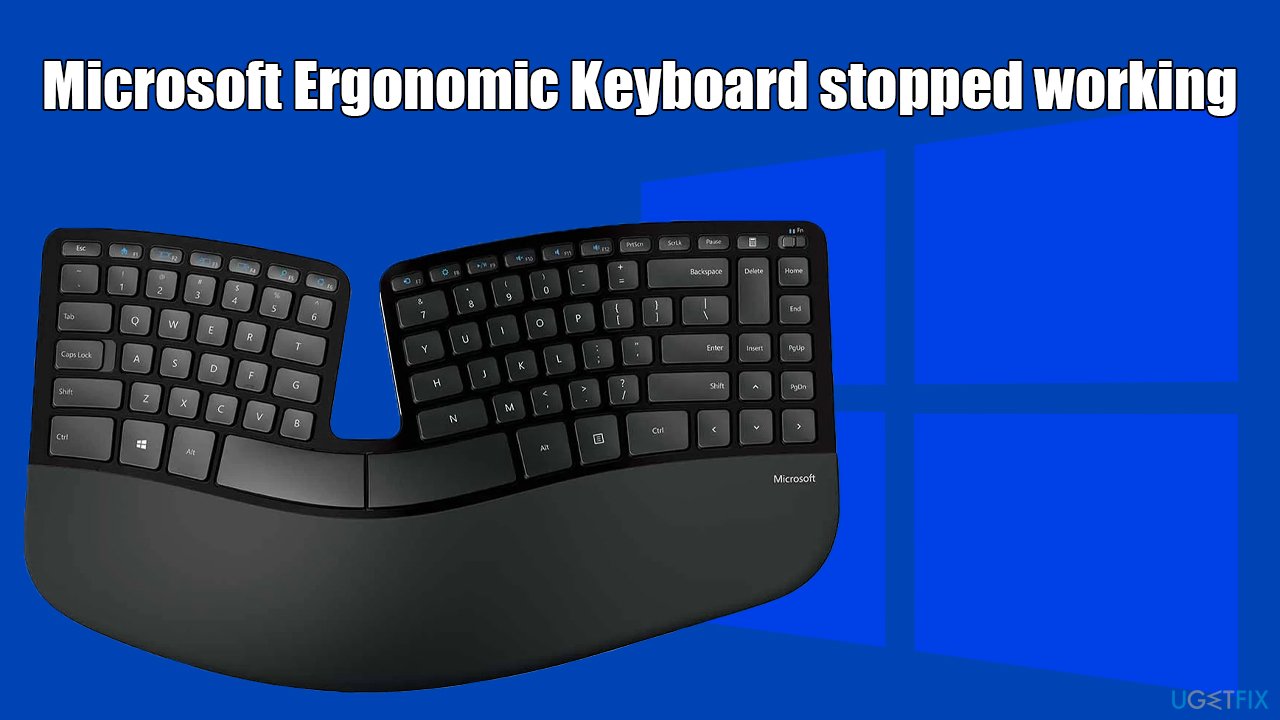
An completely unresponsive Microsoft ergonomic keyboard requires systematic physical and software troubleshooting to identify the root cause and restore functionality.
Verify Physical Connections
For wired Microsoft ergonomic keyboards, connection issues often masquerade as keyboard failures. Examine the USB connection where the keyboard cable plugs into your computer—ensure the connector seats fully in the port with no visible gap. Try disconnecting and reconnecting the cable, listening for the subtle click that indicates a secure connection. If the connection feels loose or the plug doesn’t seat properly, try a different USB port on your computer.
USB ports sometimes fail or provide insufficient power for peripheral devices. Test your keyboard on a different computer to determine whether the issue lies with the keyboard or your computer’s USB configuration. If the keyboard works on another computer, your original computer’s USB controller or drivers require attention. Computer-side USB issues often resolve through device manager updates or system restarts.
Test with Different Computers
Connecting your unresponsive Microsoft ergonomic keyboard to a different computer provides crucial diagnostic information. If the keyboard functions correctly on another system, the problem lies with your original computer’s configuration—typically involving drivers, software conflicts, or USB port issues. This isolation test eliminates keyboard hardware failure as the cause and directs your troubleshooting efforts appropriately.
If the keyboard remains completely unresponsive on a different computer, hardware failure is likely. At this point, consider whether your keyboard remains under warranty. Microsoft provides warranty coverage for manufacturing defects, and replacement units may be available for keyboards exhibiting hardware failures within the warranty period. Contact Microsoft support with your proof of purchase to explore warranty options.
Decode Indicator Light Patterns
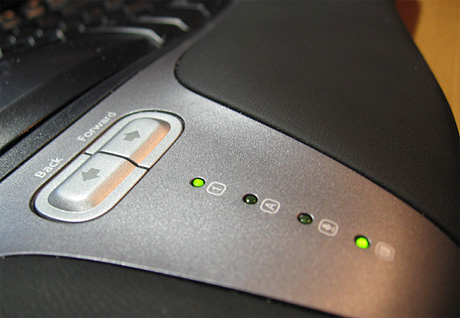
Your Microsoft ergonomic keyboard communicates its operational status through indicator lights that blink in specific patterns. Learning to interpret these patterns helps you quickly diagnose the underlying issue.
Understanding Light Patterns
A steady blinking light during the pairing process indicates your keyboard is discoverable and ready to connect to a Bluetooth-enabled computer. This normal pattern continues until successful pairing establishes a connection. The three-flash pattern followed by darkness signals an existing connection to another device that must be removed before pairing with a new computer—this pattern specifically indicates a pairing conflict rather than hardware failure.
A continuous red blinking pattern indicates critically low battery levels requiring immediate attention. At this stage, your keyboard may function erratically or fail completely without warning. Replace or recharge batteries promptly when you observe this pattern. No light at all when the keyboard is powered on suggests either depleted batteries, a power connection issue, or internal hardware problems requiring further investigation.
Maintain Your Keyboard for Long-Term Reliability
Regular maintenance extends your Microsoft ergonomic keyboard’s lifespan and prevents many common problems before they develop.
Cleaning and Care Practices
Periodic cleaning maintains keyboard functionality and appearance. Use compressed air to remove debris from between keys—hold the keyboard at an angle while spraying to effectively dislodge particles. Wipe exterior surfaces with a slightly damp cloth, avoiding harsh cleaning chemicals that could damage key legends or plastic components. Never submerge the keyboard or use excessive liquid during cleaning.
For wireless keyboards, remove batteries during extended storage periods longer than one month. Battery leakage can cause permanent damage to keyboard electronics, and removing power sources during storage prevents this risk. Keep the keyboard covered when not in use to protect against dust accumulation and accidental spills that could damage internal components.
Prevention Tip: Consider using a keyboard cover to protect against dust and liquid spills. Many third-party covers are specifically designed for Microsoft ergonomic keyboards and don’t interfere with typing comfort.
When Professional Support Is Necessary
If exhaustive troubleshooting fails to resolve your Microsoft ergonomic keyboard issues, additional resources remain available. The Microsoft Support website offers model-specific documentation, warranty information, and contact options for technical assistance. Search support articles specific to your keyboard model for targeted troubleshooting not covered in general guides.
For keyboards still under warranty, Microsoft provides replacement units for devices exhibiting hardware defects rather than repair options. Gather your proof of purchase and contact Microsoft support with your keyboard model information to explore warranty coverage. Community forums and support threads often contain solutions for unusual problems not covered in official documentation—searching these resources may reveal others who have experienced and resolved identical issues.
When all self-help options are exhausted, direct contact with Microsoft support through their website or phone support lines provides access to specialized technical assistance. Support representatives can guide you through advanced diagnostics and coordinate warranty service if applicable.
Most Microsoft ergonomic keyboard problems resolve through simple troubleshooting steps involving battery replacement, driver updates, or Bluetooth reconfiguration. By systematically working through this guide, you can identify and fix the specific issue affecting your keyboard without professional assistance. Regular maintenance and proper configuration prevent future problems and ensure your ergonomic keyboard continues providing comfortable, reliable input for years of productive use. Remember that consistent cleaning, timely battery replacement, and keeping your software updated are the keys to avoiding most common Microsoft ergonomic keyboard not working issues before they start.