You splurged on a premium ergonomic chair expecting to banish your back pain, only to find yourself leaving work each day with the same aching spine you hoped to fix. This frustrating paradox affects countless office workers who discover their supposedly “back-friendly” chair is actually making their pain worse. The reality is that an ergonomic chair causing back pain usually points to incorrect setup rather than a fundamental flaw in ergonomic design. Most high-end chairs have multiple adjustment points that require proper configuration to match your unique body. When these settings don’t align with your spinal curves and proportions, your chair can force your spine into unnatural positions that strain muscles, compress discs, and create more problems than it solves. This guide reveals the seven most common setup mistakes that transform ergonomic chairs from pain relievers into pain producers—and exactly how to fix them.
Adjusting Lumbar Support to Match Your Spinal Curve
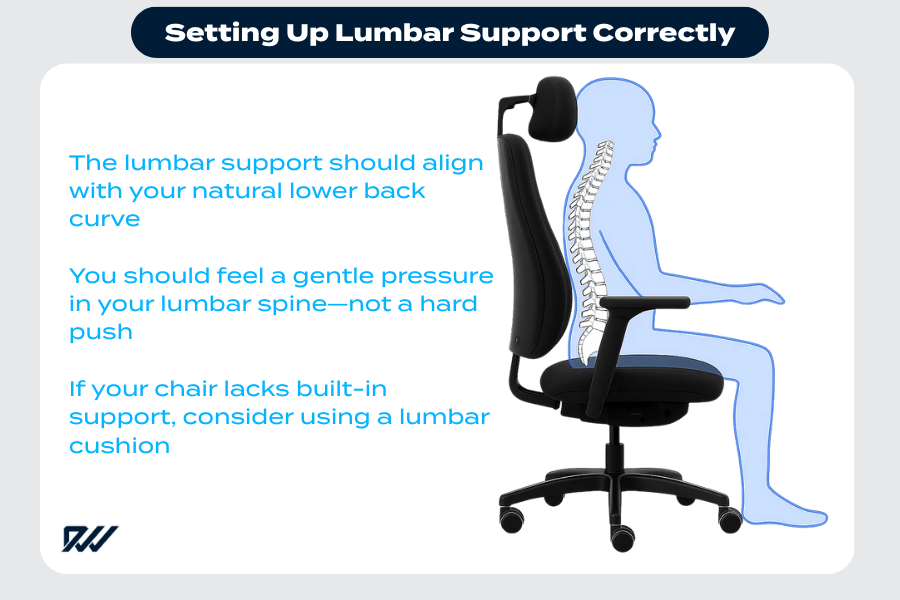
Lumbar support represents the make-or-break feature for back health in any ergonomic chair. Your lower spine has a natural inward curve that requires precise support to maintain proper alignment. When lumbar support sits too high, it pushes against your mid-back instead of your lumbar region, leaving your lower spine unsupported and vulnerable to strain. Position it too low, and it forces your pelvis forward into an exaggerated curve that overextends spinal ligaments throughout the workday.
Find your perfect lumbar position by sitting fully against the backrest and adjusting the pad until it fills the gap between your lower back and the chair at belt level—approximately four to six inches above the seat. You should feel even pressure across your entire lumbar curve without any single pressure point. Many users unknowingly set their lumbar support too aggressively; the ideal setting provides gentle support that maintains your natural curve without forcing your spine into an unnatural position. If your chair lacks adjustable lumbar support, try a rolled towel or specialized cushion that conforms to your specific spinal contours rather than generic store-bought options that often create new pressure points.
Setting Seat Height to Maintain Pelvic Neutrality
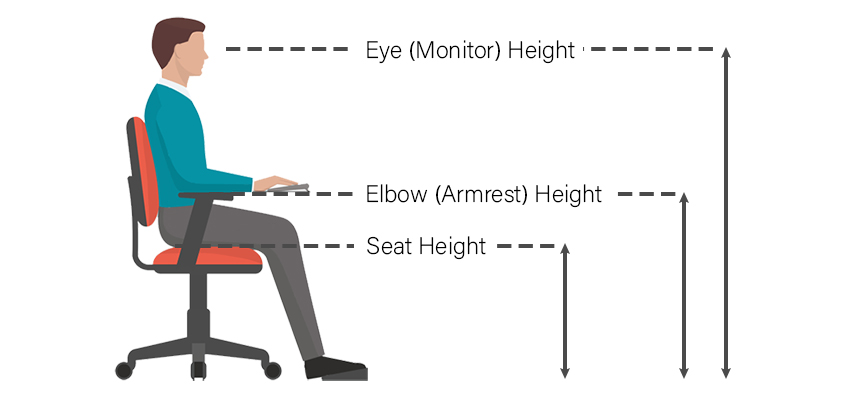
Your seat height directly determines whether your pelvis stays in a neutral position or tilts into spine-straining angles. When your feet dangle because the seat sits too high, your pelvis rotates backward, flattening your lumbar curve and transferring excessive load to the base of your spine. Set the seat too low, and your knees rise above hip level, forcing your pelvis into an exaggerated forward tilt that overworks your lower back muscles.
Achieve proper pelvic alignment by adjusting your seat height until your feet rest flat on the floor with thighs parallel to the ground and knees forming a 90-degree angle. Measure your inseam before purchasing to ensure the chair’s height range accommodates your leg length—many standard chairs fail users under 5’2″ or over 6’2″. If your feet still don’t reach the floor after lowering the seat completely, add an adjustable footrest rather than raising the seat beyond proper height. Remember that even half-inch adjustments can significantly reduce disc pressure; test different heights throughout the day to identify your optimal setting as your spine compresses slightly with prolonged sitting.
Positioning Armrests to Prevent Shoulder Tension
Improperly positioned armrests create a domino effect of strain that travels from your shoulders down to your lower back. Armrests set too high elevate your shoulders toward your ears, tightening the trapezius muscles that connect your neck to your upper back. Too low, and you’ll hunch forward to reach your desk, collapsing your thoracic spine and pulling your entire spinal column out of alignment.
Set armrest height so your shoulders can completely relax while your elbows rest at 90 degrees with forearms parallel to the floor. Your elbows should rest comfortably without needing to lift your shoulders or lean sideways. Width matters too—armrests positioned too far apart force you to splay your elbows outward, straining shoulder joints over time. Many users make the critical mistake of resting wrists on armrests while typing, which requires higher armrest positioning that elevates the shoulders. Instead, learn to float your forearms while keeping shoulders relaxed, using armrests only during breaks or when reading. This subtle change reduces upper back strain by allowing your shoulder blades to sit naturally against your rib cage.
Optimizing Recline Angle for Spinal Pressure Relief
The angle between your seat and backrest dramatically impacts disc compression throughout your workday. Sitting rigidly upright at 90 degrees creates maximum pressure on lumbar discs compared to a slightly reclined position. Research shows that a 100-110 degree recline angle reduces spinal load by allowing your body weight to distribute between your seat and backrest rather than concentrating pressure on your sit bones and lower spine.
Avoid locking your chair in a fixed upright position all day—this forces your lumbar spine to bear continuous compressive load. Instead, adjust recline tension to match your body weight so the chair moves smoothly with your natural shifts while still providing reliable support. The ideal recline position maintains full backrest contact while keeping your eyes level with the top of your monitor without neck strain. If you slide forward when reclining, your seat pan may be too short or your backrest angle too extreme. Set your recline so you can comfortably type with arms resting on the desk without reaching forward—a common mistake that creates subtle but damaging forward head posture.
Combating Static Sitting with Strategic Movement
Even perfectly adjusted ergonomic chairs cannot protect your spine from the dangers of prolonged static sitting. Your spinal discs rely on movement to exchange nutrients and remove waste—when you sit motionless for hours, this pumping action stops, causing discs to dehydrate and degenerate. An ergonomic chair causing back pain often simply encourages you to stay still too long rather than promoting the micro-movements your spine needs.
Counteract static sitting by choosing chairs with features that encourage subtle movement—flexible backrests that respond to your shifts, waterfall seat edges that allow rocking, or synchro-tilt mechanisms that link seat and backrest movement. Build movement into your workday by setting reminders to change positions every 30-45 minutes, even if you stay seated. Shift from upright to reclined positions, alternate between armrest-supported and unsupported postures, and perform seated spinal twists to maintain disc hydration. Remember that pain often arrives hours after the initial damage—by the time your back hurts, your discs may have been starving for movement for most of the workday.
Matching Chair Dimensions to Your Unique Body

Standard ergonomic chairs follow “average” body proportions that rarely match real human diversity. Tall users often struggle with backrests that don’t reach high enough to support their thoracic spine, while shorter individuals find lumbar pads positioned too high relative to their spinal curves. Heavy users may compress foam cushions beyond effective support levels, while lighter users might not activate tension mechanisms properly.
Before purchasing, measure your torso length from sacrum to shoulder blades and compare against chair specifications—many manufacturers provide compatibility charts. Pay special attention to seat depth adjustability; your chair should allow 2-4 inches between the seat edge and back of your knees when sitting fully against the backrest. If your current chair doesn’t fit, consider modifications like seat depth reducers for shorter users or extended-height backrests for taller individuals. Never assume a $1,000 chair automatically fits you—ergonomic effectiveness depends on the match between chair adjustability and your specific body dimensions.
Aligning Your Entire Workstation, Not Just the Chair
Back pain blamed on your ergonomic chair may actually stem from mismatched monitor or desk height forcing compensatory postures. A monitor positioned too high creates backward head tilt that pulls your entire spine out of alignment, while a screen that’s too low makes you crane forward, rounding your shoulders and straining your lower back.
Position your primary monitor directly in front of you at eye level when seated properly, approximately an arm’s length away. If using multiple screens, place secondary monitors at 30-45 degree angles to minimize excessive neck rotation. Desk height should allow your forearms to rest parallel to the floor with relaxed shoulders—keyboard trays or monitor risers can correct mismatched desk heights without replacing your entire workstation. Remember that your chair exists within a complete ergonomic ecosystem; perfect chair adjustment means little if your monitor forces you into a compromised posture that radiates strain down your entire spine.
When Chair Adjustments Aren’t Enough
Persistent back pain despite perfect ergonomic setup may indicate underlying conditions requiring professional evaluation. Seek medical advice if your pain radiates down your legs, includes numbness or tingling, worsens at night, or follows an injury—these symptoms suggest nerve compression or structural issues beyond ergonomic correction. A physical therapist can identify muscle imbalances contributing to your discomfort, while an ergonomics specialist can observe your actual work patterns to catch subtle setup errors you might miss. Sometimes the solution involves strengthening exercises alongside chair adjustments, as weak core muscles cannot maintain proper spinal alignment even with perfect support. Don’t endure months of preventable pain—professional guidance can distinguish between simple setup errors and conditions requiring targeted treatment.