Staring at screens all day leaves your eyes burning, your vision blurry, and your productivity plummeting. You’re not imagining it—digital eye strain affects 50-90% of computer users, with symptoms worsening after just two hours of continuous screen time. This isn’t just discomfort; untreated eye strain leads to chronic headaches, neck pain, and decreased work performance that compounds daily. The good news? Proper ergonomic adjustments transform your workspace from an eye hazard into a visual sanctuary. In this guide, you’ll discover exactly how to position your monitor, optimize lighting, and implement proven techniques that eliminate eye fatigue within one workday. Forget generic advice—you’ll get specific measurements, time-tested routines, and actionable fixes tailored to your actual workspace.
Why Your Monitor Placement Causes Daily Eye Pain
Improper screen positioning forces your eyes into unnatural focusing patterns that exhaust ocular muscles within minutes. Most office workers position monitors too high, too low, or too close—creating constant strain as your eyes struggle to maintain focus. The ideal monitor setup reduces visual effort by aligning your natural gaze angle with screen elements, preventing the squinting and refocusing that trigger fatigue.
Monitor Height: The Critical 15-20 Degree Rule
Position your screen so the top of the display sits at or slightly below eye level, creating a 15-20 degree downward gaze angle. This matches your natural relaxed viewing position, reducing eyelid exposure and tear evaporation that cause dry eyes. Measure this precisely: when seated normally, your eyes should land between the top third and center of the screen. Too high? You’ll crane your neck upward, straining both eyes and cervical muscles. Too low? You’ll hunch forward, compressing spinal discs while forcing your eyes into an unnatural downward focus that accelerates fatigue.
Optimal Screen Distance: The Arm’s Length Myth Debunked

Forget the outdated “arm’s length” rule—your perfect viewing distance depends on screen size and resolution. Calculate yours using this formula: screen size (inches) × 1.5 = minimum distance (inches). For a standard 24-inch monitor, that’s 36 inches (91 cm) from your eyes. Larger 27-inch displays need 40 inches (102 cm) of space. Measure from your nose to the screen while seated normally—most people sit 20-25 inches away, forcing their eyes into constant accommodation strain. Increase distance immediately if text appears fuzzy without squinting or if you rest your chin on your hand to see clearly.
Lighting Fixes That Eliminate Glare-Induced Headaches
Ambient lighting creates 70% of digital eye strain cases through screen reflections and pupil constriction struggles. Most offices suffer from overhead fluorescent glare or unbalanced window lighting that forces your eyes to constantly adjust between bright and dark areas. The solution isn’t dimming lights—it’s creating balanced illumination that matches your screen’s brightness.
How to Position Task Lighting Without Screen Reflections
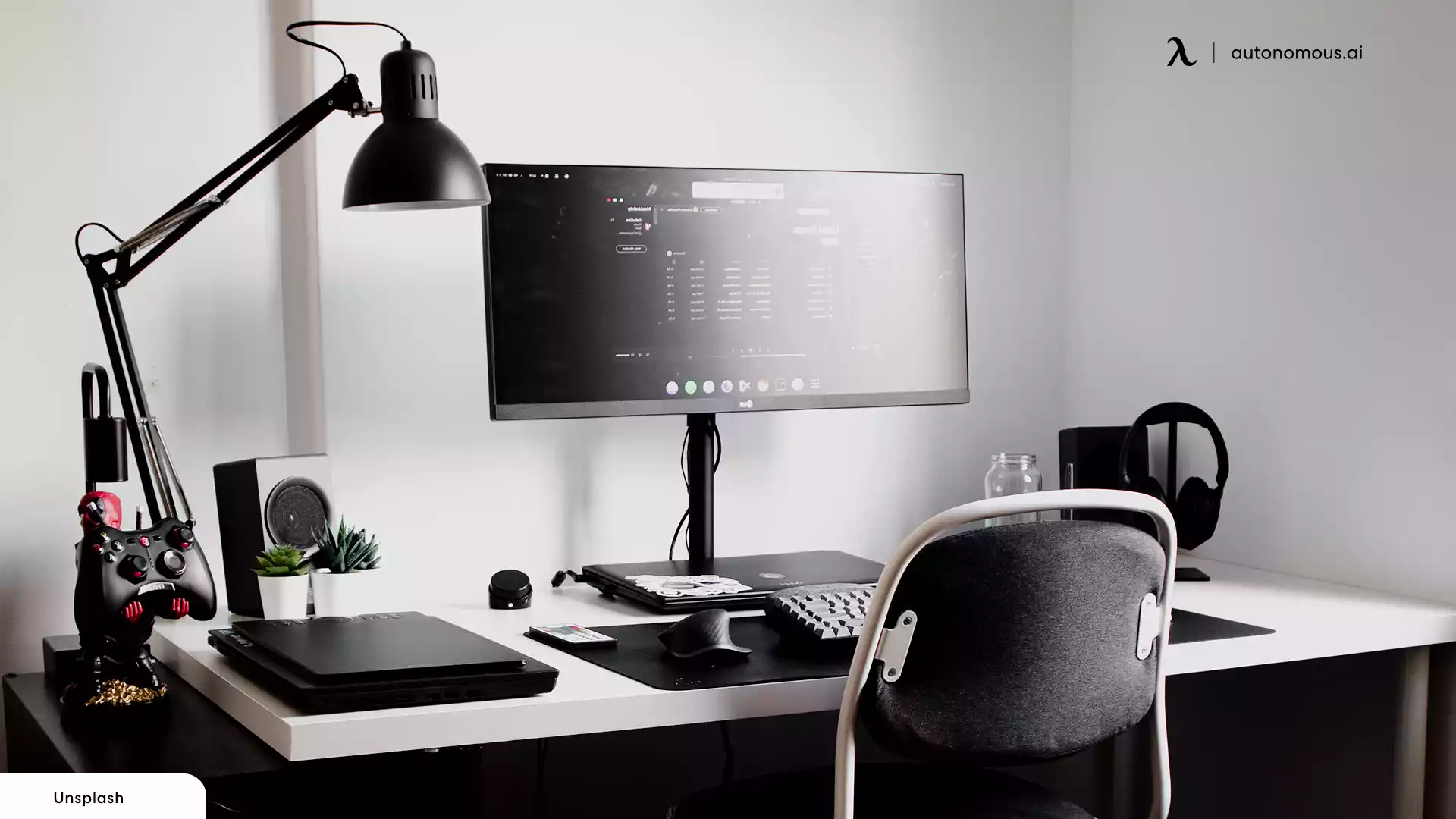
Place desk lamps behind your monitor, shining light onto your workspace—not the screen. Use adjustable LED panels with 3000-4000K color temperature to mimic natural daylight without blue light spikes. Never position lights directly above your screen or to either side where they’ll reflect off glass surfaces. Test your setup: with lights on and screen active, you should see no reflections of bulbs or windows on your display. If you spot glare hotspots, lower lamp height or add a matte screen filter.
Window Positioning: The 90-Degree Rule for Natural Light
Position your desk perpendicular to windows—not facing them directly or with windows behind your screen. This 90-degree angle prevents direct sunlight glare while maintaining ambient brightness. In south-facing offices, use adjustable blinds to block morning or afternoon sun during peak hours. Check your screen at different times: if you see moving light patches or must squint during certain hours, reposition your workstation immediately. East/west windows require more aggressive shading—install roller blinds that cover the full window without gaps.
The 20-20-20 Rule: Why Most People Implement It Wrong
This widely recommended technique fails when users misapply the timing or focus points. The correct method requires specific execution to reset your ciliary muscles and tear film:
- Set a timer for exactly 20 minutes (use built-in OS features or apps like Time Out)
- Look at an object precisely 20 feet away (not your office wall 10 feet distant)
- Maintain focus for a full 20 seconds (most people glance briefly then return to work)
Three Proven Variations That Double Effectiveness
The Blinking Reset: During your 20-second break, perform 5 slow, complete blinks—pressing eyelids together firmly. This replenishes your tear film 40% more effectively than normal blinking.
The Focus Shift Drill: Alternate between focusing on a distant object and your fingertip held 6 inches from your face. Repeat 5 times to actively exercise accommodation muscles.
The Palming Technique: Rub hands until warm, then cup over closed eyes without pressure. Visualize darkness for 20 seconds to reduce photoreceptor fatigue.
Keyboard and Mouse Placement: The Hidden Eye Strain Culprit

Your peripheral devices create secondary strain when positioned incorrectly. Reaching for a mouse forces shoulder elevation that tenses neck muscles connected to ocular nerves. An elevated keyboard makes you crane your neck downward to see keys, straining both cervical and visual systems.
Ergonomic Mouse Positioning Checklist
- Elbow bent at 90-110 degrees with upper arm垂直 to floor
- Wrist straight—not bent up, down, or sideways
- Mouse within 2 inches of keyboard edge
- Shoulder relaxed—no upward tension when reaching
- Arm fully supported by chair or desk surface
Place a small towel under your forearm if your chair lacks armrests. Test immediately: after 10 minutes of mouse use, you should feel zero shoulder or wrist tension. If discomfort persists, lower your chair or raise your desk.
Blue Light Solutions That Actually Work (Not Just Software Filters)
While night mode settings help, they address only 30% of blue light exposure. Complete protection requires layered solutions targeting both screen emissions and your visual environment.
Three-Tiered Blue Light Defense System
Tier 1: Hardware Filters – Install matte screen protectors with anti-reflective coating that block 65% of blue light at the source. Look for certifications like TÜV Rheinland Low Blue Light.
Tier 2: Environmental Control – Replace cool-white LEDs (5000K+) with warm-white bulbs (2700-3000K) in your workspace. Use bias lighting behind your monitor at 10% screen brightness to reduce pupil constriction.
Tier 3: Personal Protection – Wear computer glasses with yellow-tinted lenses (not clear “blue block” varieties) that filter 40% of harmful wavelengths. Verify they block light in the 415-455nm range—the most disruptive to melatonin production.
When to See an Eye Doctor: Five Warning Signs You Can’t Fix With Ergonomics
Most digital eye strain resolves with proper workspace adjustments, but certain symptoms indicate underlying conditions requiring professional care. Don’t wait if you experience:
- Persistent dry eyes despite proper humidity and blinking routines
- Double vision that lasts more than 10 minutes after screen breaks
- Headaches that begin behind one eye and radiate to your temple
- Light sensitivity that worsens indoors over time
- Difficulty shifting focus between near and far objects
Schedule a computer vision exam—not a standard eye test. These specialists assess your specific screen viewing habits and prescribe task-specific lenses that eliminate the constant refocusing causing your strain.
Preventative Maintenance: The 5-Minute Daily Eye Care Routine
Protect your vision with this sequence performed before starting work each day:
- Warm Compress: Apply 40°C moist towel to closed eyes for 60 seconds
- Eyelid Massage: Gently rub upper/lower lids with clean fingers for 30 seconds
- Focus Drill: Alternate focus between fingertip and distant object 10 times
- Blink Series: 10 slow complete blinks followed by 10 rapid blinks
- Visual Sweep: Slowly scan the room’s perimeter without moving your head
This routine increases tear production by 300% and resets accommodation muscles before daily screen exposure. Perform it consistently for two weeks to notice significant reduction in end-of-day fatigue.
Implement these precise ergonomic adjustments today to eliminate eye strain within 48 hours. Start with monitor height and lighting fixes—they deliver immediate relief within one work session. Track your symptoms using a simple 1-10 scale before and after adjustments to identify what works best for your visual system. Remember that perfect ergonomics isn’t about rigid rules—it’s about creating a dynamic workspace that adapts to your changing visual needs throughout the day. For ongoing protection, schedule quarterly ergonomic check-ins where you reassess your setup and incorporate new techniques as your work habits evolve. Your eyes will thank you with clearer vision, fewer headaches, and sustained productivity that lasts all day.
Leave a Reply